.png)
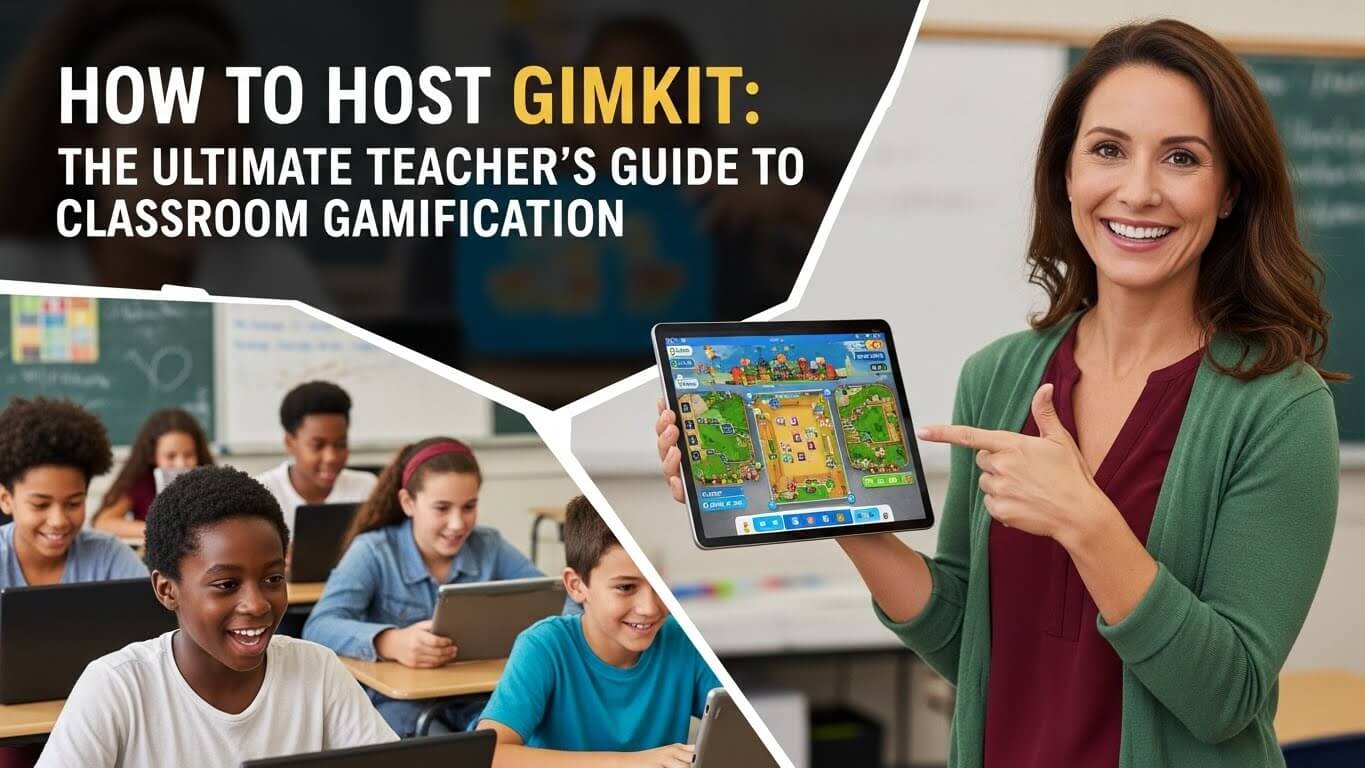
Introduction: Revolutionizing Classroom Engagement with Gimkit
In the rapidly evolving landscape of educational technology, maintaining student engagement is one of the toughest challenges teachers face. While traditional slide decks and paper quizzes still have their place, the gamification of learning has transformed how students absorb and retain information. Enter Gimkit—a live learning game show platform that plays like a video game but assesses like a quiz.
Unlike static quiz tools, Gimkit offers dynamic game modes, an in-game economy, and strategic layers that keep students hooked. Whether you are a veteran educator or a tech-novice teacher, learning how to host a Gimkit session can turn a lethargic Monday morning class into an energetic battle of wits. For educators constantly seeking the best digital resources, exploring platforms like All AI Tools can provide a broader perspective on the latest tech innovations shaping modern classrooms.
In this comprehensive guide, we will walk you through everything you need to know about hosting Gimkit games, from account creation to advanced game modes, ensuring you become the ultimate game master in your school.
What is Gimkit and Why Do Students Love It?
Gimkit was created by high school students who felt that existing review games were becoming repetitive. It differentiates itself by introducing an economy system. Students earn in-game money by answering questions correctly, which they can then spend on upgrades and power-ups. This mechanic adds a layer of strategy that goes beyond simple rote memorization.
The Core Mechanics
- Earning: Correct answers generate cash (points).
- Investing: Students buy upgrades (like “Money per Question”) to accelerate their earnings.
- Sabotage & Defense: Power-ups allow students to freeze opponents or protect themselves, mimicking the mechanics of popular video games.
This structure levels the playing field. A student who may not be the fastest reader can still win by making smart investments, making Gimkit a more inclusive tool for diverse learners compared to speed-only platforms.
Step-by-Step: How to Host a Gimkit Game
Hosting your first session might seem intimidating, but the interface is designed to be user-friendly. Follow this workflow to launch a successful game.
Step 1: Account Setup and Dashboard Navigation
First, navigate to the Gimkit homepage. You can sign up using your Google email, which is convenient for schools using Google Classroom. Once logged in, you will see your dashboard. This is your command center where you can manage “Kits” (quizzes), view reports, and access assignments.
Step 2: Creating Your First Kit
A “Kit” is Gimkit’s term for a question set. You have several options to create one:
- Manual Entry: Type questions and answers one by one.
- Question Bank: Search Gimkit’s community library to borrow questions from other teachers.
- Flashcard Import: Import existing sets from Quizlet or a CSV file.
- AI Generation: This is a game-changer. You can paste a text passage, and Gimkit’s AI will generate questions for you.
If you are new to using artificial intelligence for content creation, you might wonder how to frame your requests for the best results. Understanding how to ask AI a question effectively can help you generate higher-quality distractors and more rigorous questions for your Kit.
Step 3: Launching the Host Screen
Once your Kit is ready, click the green “Play Live” button. This does not start the game immediately; it takes you to the game configuration screen. Here, you will select your Game Mode—a crucial decision that dictates the energy of the room.
Selecting the Right Game Mode
Gimkit’s variety of modes is its superpower. Choosing the right mode depends on your learning objective and the time available.
1. Classic Mode
The standard experience. Students compete individually to earn the most money within a time limit. Ideally used for quick reviews.
2. Trust No One (Among Us Style)
Inspired by the viral social deduction genre, this mode assigns students as “Crewmates” or “Impostors.” Crewmates must answer questions to run tests and identify the Impostors. It encourages communication and is fantastic for team building.
3. The Floor is Lava
A cooperative mode where the class must work together to keep a structure above rising lava. If students stop answering correctly, the lava rises. This is perfect for fostering class unity rather than competition.
4. Fishtopia
A more relaxed mode where answering questions creates bait to catch fish. It’s less chaotic and great for independent practice or a “calm down” activity after recess.
Advanced Hosting Strategies for Teachers
Once the game is live, your role shifts from creator to facilitator. Here are expert strategies to ensure smooth gameplay.
Managing Student Access
When you click “Continue,” a game code generates on the screen. Students join by visiting gimkit.com/join and entering the code. You do not need student accounts for them to play, making it compliant with strict privacy laws.
Pro Tip: Sometimes, school filters can be aggressive. If students struggle to connect, verify that your IT department has whitelisted the domain. In some downtime scenarios, students might try to access unblocked game websites for school, but for Gimkit to work, it must be officially sanctioned on the network.
In-Game Moderation
As the host, you have a control panel:
- Remove Player: If a student enters an inappropriate name, click their name to boot them. They can rejoin with a proper name.
- Pause Game: Useful for “teachable moments.” If you see the class struggling, pause the game and explain the concept before resuming.
- Balance Adjustment: In some modes, you can adjust the difficulty on the fly if the game is ending too quickly.
Homework and Asynchronous Play
Gimkit isn’t just for live classes. You can assign a Kit as Homework. This creates a link that students can access anytime before the deadline. It’s an excellent way to replace boring worksheets.
When assigning homework, consider the broader digital habits of your students. Many are used to engaging with various platforms, from Tyrone’s unblocked games during breaks to educational apps. Meeting them where they are digitally ensures higher completion rates. The homework mode retains the “earning” mechanic, so students still feel a sense of progression even when playing alone.
Troubleshooting Common Hosting Issues
Even the best technology hiccups. Here is how to handle common scenarios.
Lag and Connectivity
If the game lags, instruct students to refresh their browsers. They will usually rejoin the game with their progress intact. If your school’s Wi-Fi is spotting, switch to “Low Bandwidth Mode” in the settings if available, or advise students to close background tabs like YouTube or Slope unblocked games.
Student Disengagement
If a student is losing badly, they might give up. Remind them of the “Clapback” power-up or other comeback mechanics in the shop. Gimkit is designed to allow massive swings in score, so it’s never truly over until the timer hits zero.
Analyzing Post-Game Data
The true value of hosting a Gimkit session lies in the data. After the game, you receive a detailed report showing:
- Class Accuracy: The overall percentage of correct answers.
- Question Breakdown: Which questions were missed the most? This highlights exactly what you need to reteach.
- Student Performance: Individual reports to identify students who need intervention.
Use this data to inform your lesson planning for the next day. If 60% of the class missed the question on “Mitochondria,” start tomorrow’s class with a mini-lesson on cell biology.
The Pedagogical Value of Gamification
Why go through the trouble of hosting a digital game? The benefits are backed by cognitive science:
- Immediate Feedback: Students know instantly if they are wrong, allowing for self-correction.
- Spaced Repetition: Because questions repeat in Gimkit until the game ends, students encounter the material multiple times in a single session, reinforcing memory pathways.
- Soft Skills: Modes like “Trust No One” teach negotiation, deduction, and teamwork.
For a broader look at safe and accessible gaming resources that can complement your educational toolkit, check out our guide on unblocked game websites for school, which discusses how to balance fun with safety in a school environment.
Frequently Asked Questions
1. Is Gimkit free for teachers?
Gimkit offers a “Gimkit Basic” plan which is free forever but has limitations on the number of active game modes available at one time. The paid version, “Gimkit Pro,” unlocks all game modes and offers unlimited edits and audio recording features.
2. How many students can join a hosted game?
Gimkit is robust and can handle large classes. The free version typically allows up to 50 players per game, while the Pro version increases this limit substantially, making it suitable for lecture halls or school-wide assemblies.
3. Can I use Gimkit for subjects other than Math or English?
Absolutely. Gimkit is content-agnostic. Whether you are teaching foreign languages, periodic tables in chemistry, or historical dates, as long as it can be framed as a question and answer, it works. You can even insert images for visual identification tasks.
4. How do I prevent students from using inappropriate names?
In the game settings before you launch, you can toggle on the “Nickname Generator.” This forces students to use friendly, pre-selected names (like “Happy Panda” or “Smart Falcon”), completely eliminating the risk of inappropriate user-generated names.
5. What makes Gimkit different from Kahoot or Quizizz?
While Kahoot is great for linear quizzing and Quizizz for self-paced tests, Gimkit focuses on strategy and replayability. The economy system means knowledge is the fuel for the game, but strategy wins it. This keeps high-achieving students engaged longer and gives struggling students a chance to catch up via smart power-up usage.
Conclusion
Mastering how to host a Gimkit is a powerful addition to any teacher’s repertoire. It bridges the gap between entertainment and education, meeting digital-native students in a medium they understand and enjoy. By creating an environment where failure is just a temporary setback and knowledge is currency, you foster a growth mindset in your classroom.
As you integrate these tools, remember to explore the wider ecosystem of educational technology. Whether it’s understanding safe browsing via guides on accessing educational content or utilizing AI to speed up lesson planning, resources like All AI Tools are there to support your journey. So, log in, create a Kit, and get ready to hear your students beg for “just one more game!”

The editor of All-AI.Tools is a professional technology writer specializing in artificial intelligence and chatbot tools. With a strong focus on delivering clear, accurate, and up-to-date content, they provide readers with in-depth guides, expert insights, and practical information on the latest AI innovations. Committed to fostering understanding of fun AI tools and their real-world applications, the editor ensures that All-AI.Tools remains a reliable and authoritative resource for professionals, developers, and AI enthusiasts.