.png)
Introduction: Navigating Social Media Privacy and Connections
Social media dynamics are constantly evolving, and maintaining control over your digital space is crucial for a healthy online experience. Whether it was a heated debate, a privacy concern, or simply a need for distance, blocking someone on Facebook is a feature many of us have utilized. However, relationships change, and situations resolve. If you have decided it is time to reconnect or simply remove a restriction, knowing how to unblock someone on Facebook is essential knowledge for any platform user.
As a Senior Tech Writer at All AI Tools, I understand that platform interfaces change frequently. Meta (formerly Facebook) often updates its menus, moving privacy settings into new sub-folders or renaming sections entirely. This can make a simple task feel like a treasure hunt. This comprehensive, 2000-word guide is designed to cut through the confusion. We will provide detailed, step-by-step instructions for every device—desktop, iPhone, Android—and cover the nuances of Messenger blocking versus full Facebook blocking.
In this guide, we won’t just tell you which buttons to click; we will explain the implications of unblocking, the “48-hour rule,” and how to manage your digital boundaries effectively without compromising your privacy. Let’s dive into the technical details of restoring connections on the world’s largest social network.
Understanding the Mechanics of Blocking and Unblocking
Before we proceed to the "how-to," it is vital to understand the "what-happens." Facebook’s blocking mechanism is a total severance of digital ties. When you block someone, they cannot see your posts, tag you, invite you to events, start a conversation with you, or add you as a friend. Effectively, you become invisible to each other.
The Consequences of Unblocking
Unblocking is immediate, but it does not restore things exactly as they were before the block. Here are key technical points you must know:
- Friendship Status: Unblocking does not automatically re-friend the person. If you were friends before you blocked them, you will be currently unmatched. You must send a new Friend Request if you wish to reconnect.
- The 48-Hour Rule: This is a critical security feature. Once you unblock someone, Facebook prevents you from blocking them again for 48 hours. This is designed to prevent harassment (e.g., unblocking to send a mean message and immediately re-blocking).
- Tagging and Visibility: Once unblocked, the person may be able to see your public posts or posts shared with mutual friends, depending on your current privacy settings.
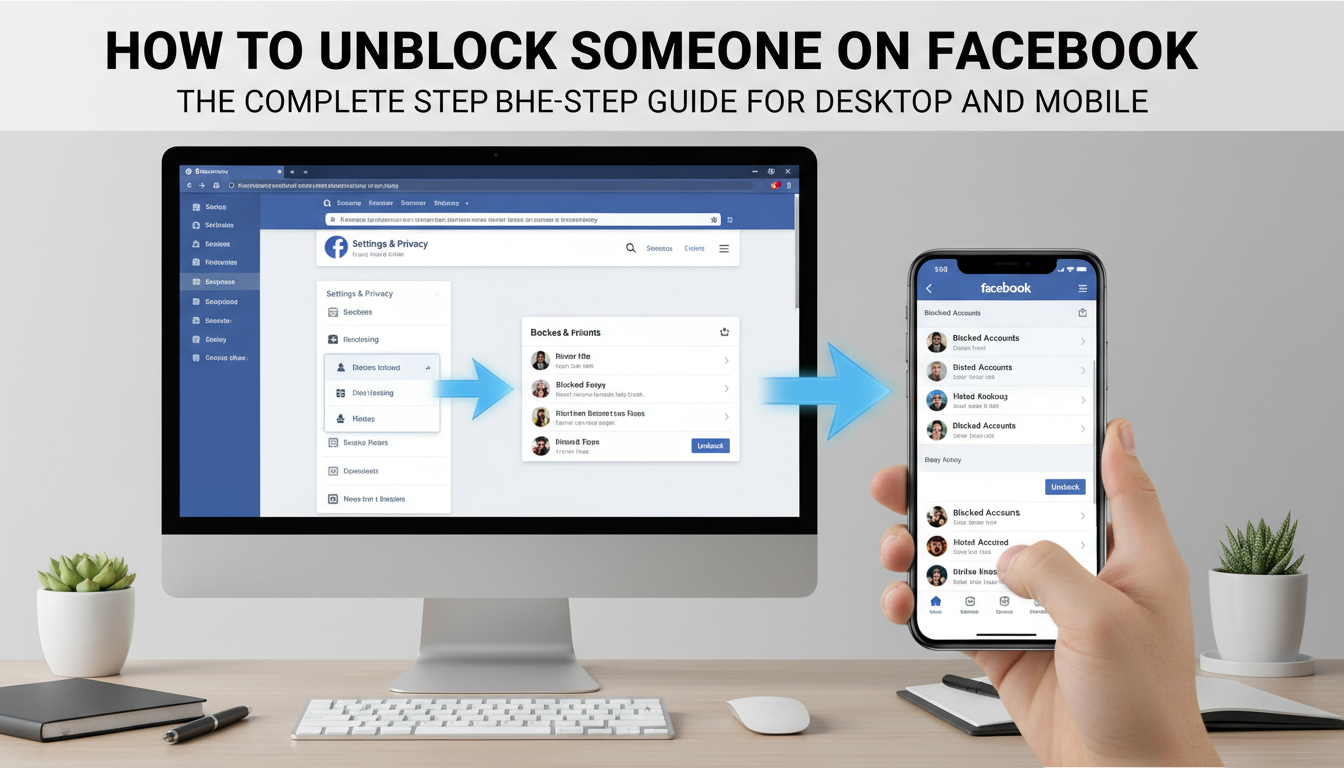
How to Unblock Someone on Facebook via Desktop (Web Browser)
For those who prefer managing their settings on a larger screen, the desktop version of Facebook offers a centralized privacy center. This method is often the most reliable as it is less prone to the navigation quirks found in mobile app updates.
Step-by-Step Desktop Instructions
- Log In: Navigate to Facebook.com and ensure you are logged into the correct account.
- Access Menu: Click on your profile picture in the top right corner of the screen.
- Settings & Privacy: Select "Settings & privacy" from the dropdown menu, then click on "Settings."
- Privacy Center: In the left-hand sidebar, look for the "Blocking" option. Note: In the new "Meta Accounts Center" layout, you might need to click "Privacy" first to reveal the Blocking tab.
- Manage Block List: You will see a section labeled "Block users." Here, you can search for new people to block or view your current list.
- Unblock: Locate the name of the person you wish to reinstate. Click the blue "Unblock" text next to their name.
- Confirm: A pop-up window will appear detailing the consequences (as discussed above). Click "Confirm" to finalize the action.
If you are managing multiple accounts or using specialized browser extensions for social media management, ensure they don’t interfere with pop-ups, as the confirmation dialog is essential.
How to Unblock Someone on Facebook on Mobile (iPhone & Android)
Most users access social media exclusively through mobile devices. The process on iOS and Android is similar, but slight UI variations exist. Below, we break down the workflow for the mobile app.
Unblocking on iOS (iPhone/iPad)
Apple users often navigate strict privacy controls. Occasionally, network settings or active VPNs can interfere with app loading times. If you experience connectivity issues while trying to save settings, you might want to check our guide on how to turn off VPN on iPhone to ensure a stable connection to Facebook’s servers.
- Open the App: Launch the Facebook app on your iOS device.
- Menu: Tap the Menu tab (three horizontal lines) in the bottom right corner.
- Settings Gear: Scroll down and tap "Settings & privacy," then select "Settings." Alternatively, tap the gear icon at the top right of the menu.
- Audience and Visibility: Scroll down to the "Audience and visibility" section.
- Blocking: Tap on "Blocking."
- Select User: You will see a list of blocked profiles. Tap "Unblock" next to the relevant name.
- Finalize: Confirm the action in the dialogue box.
Unblocking on Android Devices
Android interfaces can vary slightly depending on the device manufacturer (Samsung, Pixel, etc.), but the Facebook app structure remains consistent.
- Launch App: Open Facebook on your Android device.
- Hamburger Menu: Tap the three horizontal lines in the top right corner.
- Settings: Scroll to "Settings & privacy" and tap "Settings."
- Profile Settings: In some versions, you may need to tap "Profile Settings" next to your profile picture.
- Blocking: Locate the "Blocking" menu item.
- Execute: Find the person and tap "Unblock."
If you find yourself constantly managing digital restrictions across different platforms—like gaming or streaming—it is helpful to understand the difference between a simple user block and a platform-wide ban. For gamers dealing with stricter restrictions, resources like how to get unbanned from Roblox offer insights into more complex account recovery processes that differ from the simple toggle of a Facebook block.
Messenger vs. Facebook: Distinct Blocking Layers
A common point of confusion is the difference between Facebook and Messenger. It is possible to block messages and calls from someone while still remaining friends with them on Facebook.
Unblocking on Messenger
If you only blocked someone’s messages but not their profile, the unblocking process is specific to the Messenger app:
- Open the Messenger app.
- Tap the Menu (three lines) in the top left.
- Tap the Gear icon (Settings).
- Select "Privacy & safety."
- Tap "Blocked accounts."
- Here, you can choose to unblock messages and calls specifically.
Understanding these nuances is key to digital hygiene. Just as you might look for Twitter alternatives to curate a better content feed, managing your Messenger block list allows you to curate your direct communications without severing public social ties.
Troubleshooting: Why Can’t I Unblock Someone?
Sometimes, technology fails us. If you follow the steps above but cannot unblock someone, consider these factors:
1. The Account No Longer Exists
If the person has deactivated their account or was banned by Facebook, their name may appear in your block list as "Facebook User" or remain un-clickable. You cannot unblock a ghost account.
2. Platform Glitches
Cache issues can prevent settings from saving. Try clearing your browser cache or updating your mobile app. If you are on a restricted network (like a school or workplace), firewall settings might impede specific scripts on the settings page. While students often look for unblocked game websites for school, similar network restrictions can sometimes mess with legitimate social media administrative tasks.
3. You Are Blocked
If you unblock someone, but they have also blocked you, you still won’t be able to see their profile. A double-block creates a complete stalemate until both parties lift the restriction.
Alternatives to Blocking: The “Take a Break” Feature
If you are unblocking someone because the "nuclear option" felt too harsh, but you still aren’t ready for full engagement, consider Facebook’s intermediary tools.
- Restricted List: Friends on this list only see your Public posts. They don’t see posts shared with "Friends."
- Take a Break: This feature allows you to see less of someone’s content and limits what they see of yours without unfriending or blocking them.
- Unfollow: You remain friends, but their posts stop appearing in your News Feed.
Navigating these social nuances can be complex. Sometimes, it helps to use technology to solve technology problems. You might even ask an AI tool to draft a polite message to someone you are reconnecting with after a long block, easing the social friction.
Advanced Tip: Managing Digital Footprints
When you unblock someone, old tags may reappear. If you previously tagged this person in photos, those tags might reactivate depending on the media’s privacy settings. It is wise to review your Activity Log immediately after unblocking someone if you wish to curate what past interactions are visible.
Just as you would perform maintenance on your hardware—like learning how to clean an Xbox Series X to keep it running smoothly—performing a “privacy audit” on your Facebook account periodically is essential for digital well-being.
Frequently Asked Questions (FAQs)
Does the person get notified when I unblock them?
No. Facebook does not send a notification to a user when they are unblocked. However, they may realize it if they search for you and can suddenly see your profile or send you a friend request again.
Can I re-block someone immediately after unblocking them?
No. Facebook enforces a 48-hour waiting period after you unblock someone before you can block them again. This prevents abuse of the blocking system.
Will unblocking someone restore our old messages?
Generally, yes. If you did not delete the chat thread, unblocking them allows you to view the previous conversation history in Messenger. However, you cannot message them until the block is fully lifted on the Messenger side as well.
Why can’t I find the person I just unblocked?
This usually happens for two reasons: either they have blocked you in return, or their privacy settings are set so that they cannot be found in public search. You may need a mutual friend to send you a link to their profile.
Is there a limit to how many people I can block?
While Facebook has not published a strict "block limit" for general users, the interface may become slow if you have thousands of blocked users. Regular auditing of your block list is recommended.
Conclusion
Learning how to unblock someone on Facebook is more than just a technical skill; it is about managing your social boundaries in the digital age. Whether you are using a desktop, iPhone, or Android device, the process is reversible and gives you the flexibility to change your mind as relationships evolve. Remember that unblocking is a one-sided action that restores visibility but not necessarily friendship—you will need to send that friend request if you want to fully reconnect.
By understanding the nuances of the 48-hour rule, Messenger blocking, and privacy settings, you ensure that your social media experience remains under your control. For more guides on navigating the complex world of tech, from solving connectivity issues to mastering AI tools, stay tuned to our expert analysis here at All AI Tools.

The editor of All-AI.Tools is a professional technology writer specializing in artificial intelligence and chatbot tools. With a strong focus on delivering clear, accurate, and up-to-date content, they provide readers with in-depth guides, expert insights, and practical information on the latest AI innovations. Committed to fostering understanding of fun AI tools and their real-world applications, the editor ensures that All-AI.Tools remains a reliable and authoritative resource for professionals, developers, and AI enthusiasts.